Secure Remote Support Setup
This guide helps you set up secure, private remote support. Only Gentle Tech Guide can access your computer, and you can end the session at any time.
(Note: RustDesk is a remote assistance technology that is used securely and privately by Gentle Tech Guide)
Windows PC
Download RustDesk from https://rustdesk.com/download (<— click link)
Install and open RustDesk.
Go to Settings → Network and enter:
ID Server: rd.ask-gtg.com
Relay Server: rd.ask-gtg.com
Key: (Key provided by GentleTechGuide)
Close and reopen RustDesk
Click the pink Install button and restart the program one more time.
Mac
Download RustDesk from matching your MacOS version (click link ->):
x86-64 (64-bit) dmg package
AArch64 (ARM64) dmg package
Double click RustDesk.dmg.
Drag RustDesk.app into Applications.
Close and eject the DMG.
Fix permissions:
Open RustDesk from Applications and allow permissions when prompted. Quit the application.
Open System Settings → Privacy & Security:
Enable: Screen Recording; Accessibility
Restart RustDesk
Go to Settings → Network and enter:
ID Server: rd.ask-gtg.com
Relay Server: rd.ask-gtg.com
Key: (Key provided by GentleTechGuide)
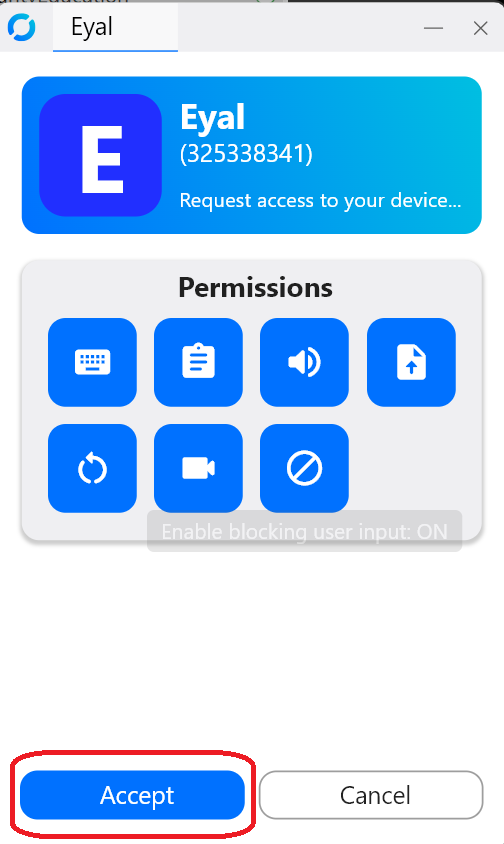
This is what you see when you start RustDesk Remote Help
Instructions:
When prompted by your guide, please provide the ID and Password (on left)
When asked to enter information in settings, click on the small right menu
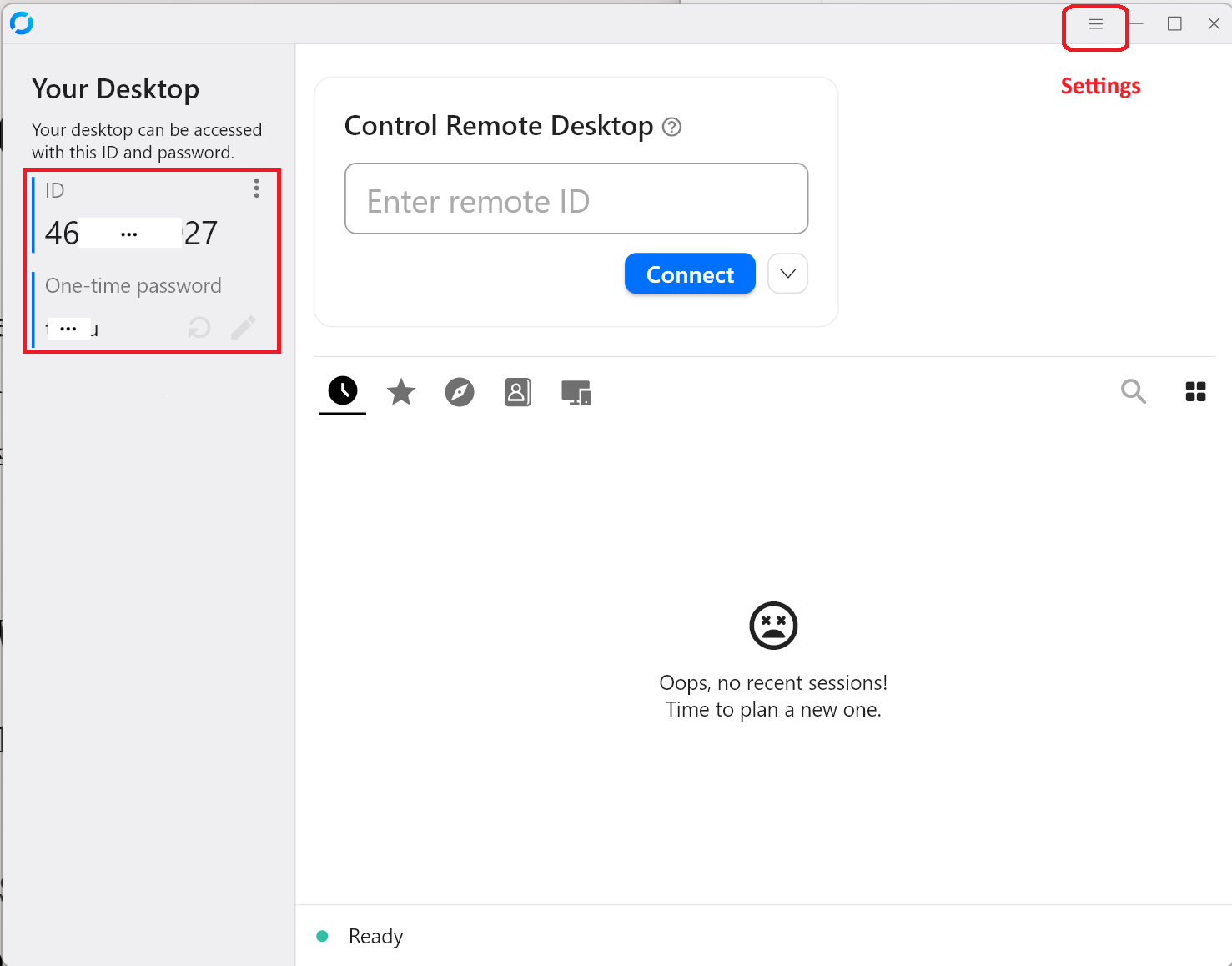
Settings screen to enter connection configuration:
ID Server: rd.ask-gtg.com
Relay Server: rd.ask-gtg.com
Key: (will provided privately by your guide)
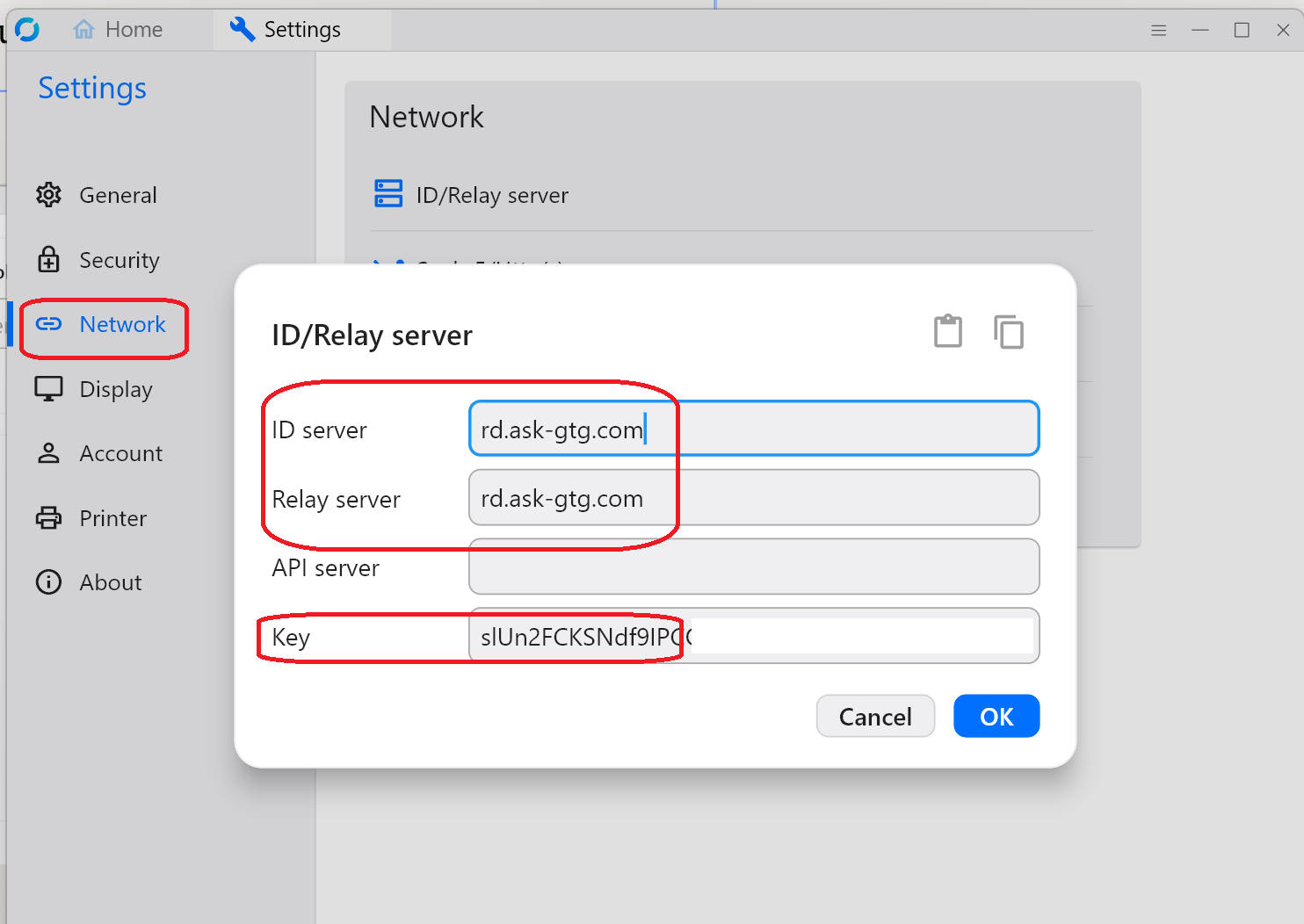
Accept the connection when prompted by your guide: